

If uploads or email stop because storage is full, find what is using the space first. Do not delete website files at random.
Open this page on ServersCrest.
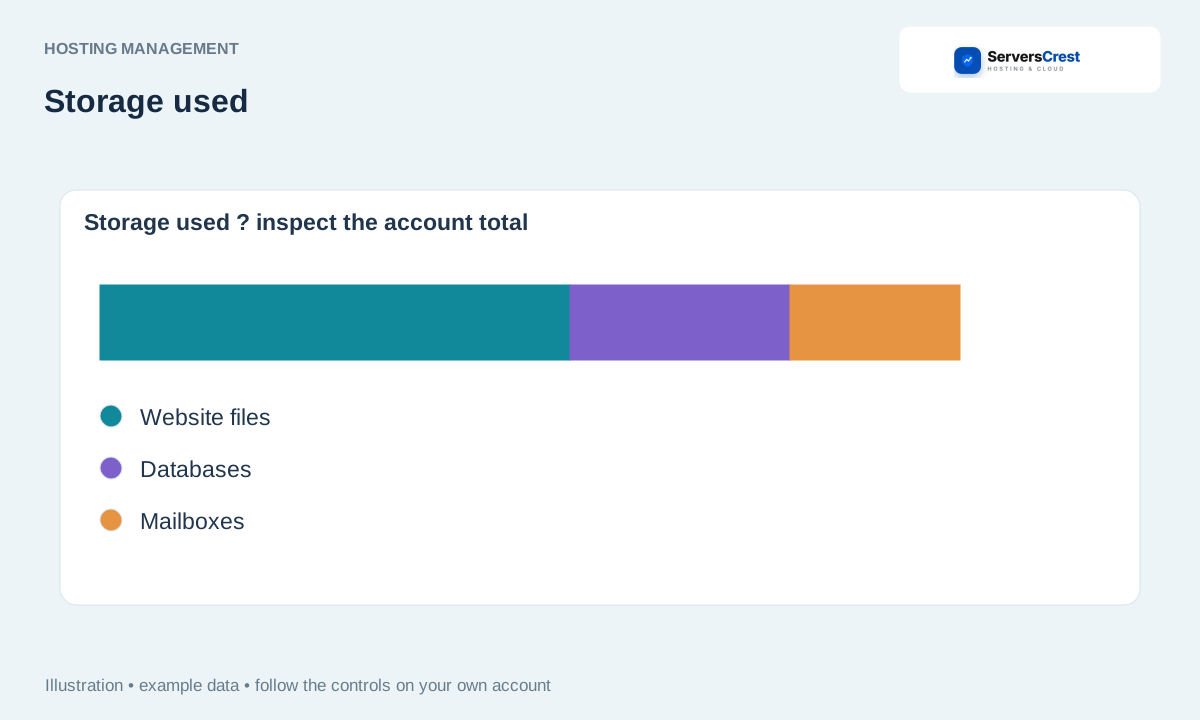
Read Storage used on the service overview
Read Storage used on the service overview or the control panel's disk-usage screen. Open the hosting account that has the problem. The limit belongs to that account, not to every service on your dashboard.
Identify website, database, mailbox and backup usage. Check for large old backups, mailbox folders and logs you recognise. Databases and email can take space even when the website files look small.
Download a copy of anything you intend to remove. Make sure the download finishes and that you can find the copy on your computer. If the server has no room for another archive, ask support about downloading existing files directly.
Remove only data you recognise or ask support about a larger plan. Leave files you do not recognise in place. If all the data is needed, an upgrade may be the right answer.
Recheck free space and retry the original task. Try the upload, email or other task that originally failed. Freeing a little space does not resolve every website error.
Log in to cPanel from your service page · Log in to DirectAdmin from ServersCrest
Need help with this? Send us a ticket and tell us which page you reached and what happened.