

Use Databases on your hosting service to give a database user access or to change its password. Choose the correct user before changing anything.
Open this page on ServersCrest.
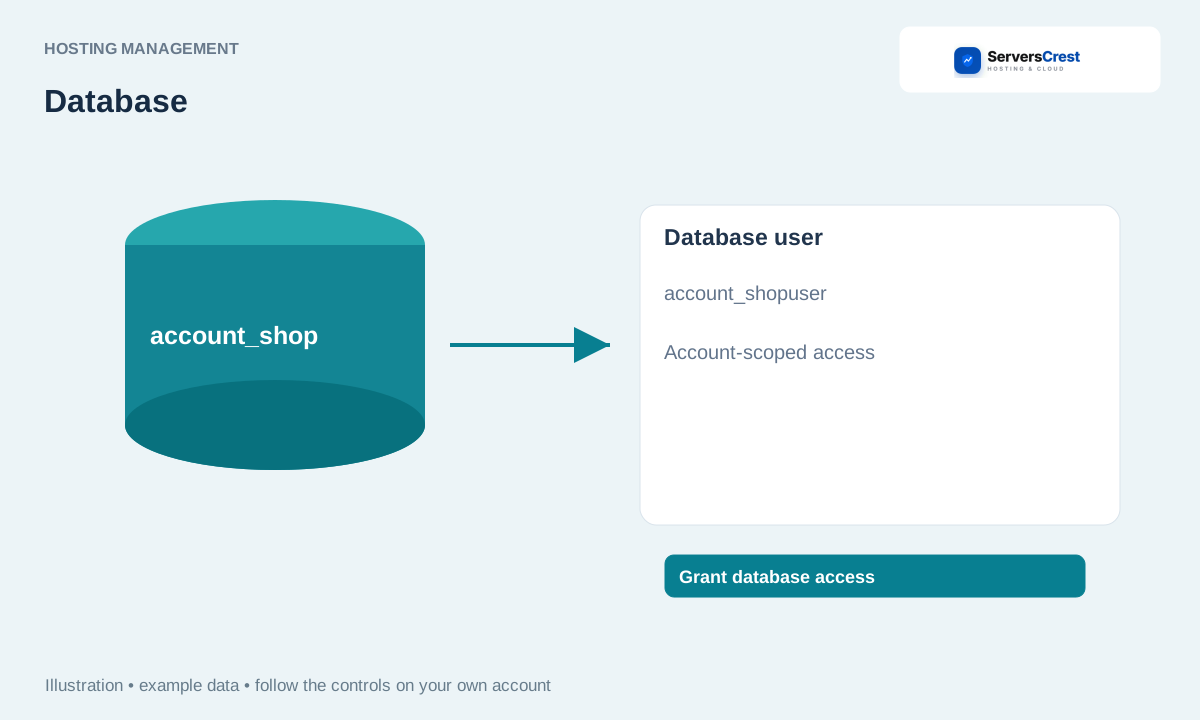
Choose the database and user pair
Open your hosting service, click Databases and check the Users column beside the database. A website can use a database user whose name differs from the database name. Check the username in the website configuration if you are unsure.
To connect a user, select its name and the database in Assign a user to a database. Click Grant database access. Choose both names from the lists, then grant access. This gives that user all privileges on the selected database.
To reset a password, open Password & removal for that user, enter New password and click Update password. A website using the old password will stop connecting after the reset. Update its database password setting to match.
To delete a user, read and tick Remove this user's database access by deleting the user, then click Delete user. Deleting the user removes its access. It is not a way to delete the database itself, and other websites may share that user.
Create a hosting database · Open phpMyAdmin for your hosting database
Need help with this? Send us a ticket and tell us which page you reached and what happened.