

Your saved hosting password stays hidden on the service page. To see it, confirm the password you use to sign in to ServersCrest.
Open this page on ServersCrest.
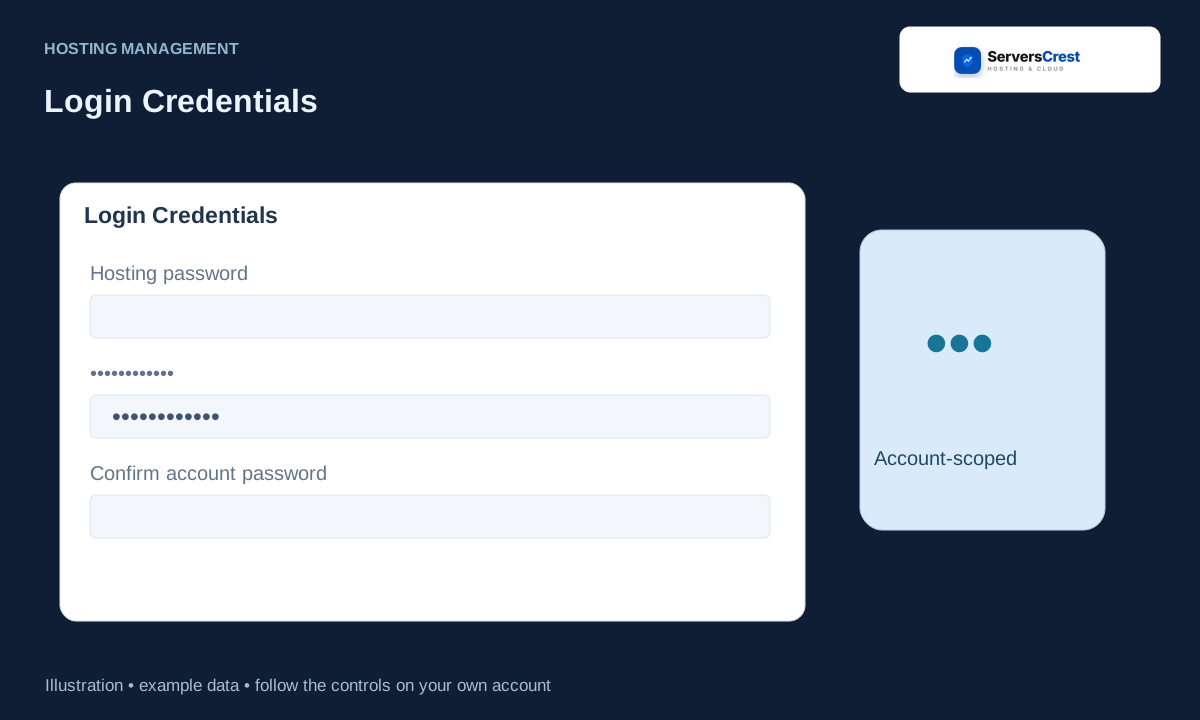
Find Login Credentials on the service
Open the service and find Login Credentials. Open the hosting account you need and find its Login Credentials section.
Click the eye beside Hosting password. The eye opens a confirmation prompt. It does not show the password immediately.
Enter your ServersCrest dashboard password when asked. Use your ServersCrest account password here, not the hidden hosting password. Submit the prompt and wait for the result.
Read the credential privately and hide it again when finished. Copy the password only where you need it, then hide it again. Do not include it in a screenshot or ordinary support message.
Log in to cPanel from your service page · Log in to DirectAdmin from ServersCrest
Need help with this? Send us a ticket and tell us which page you reached and what happened.