

Use the currency menu at the top of ServersCrest to view plans in a currency you recognise. Check the currency again before paying.
Open this page on ServersCrest.
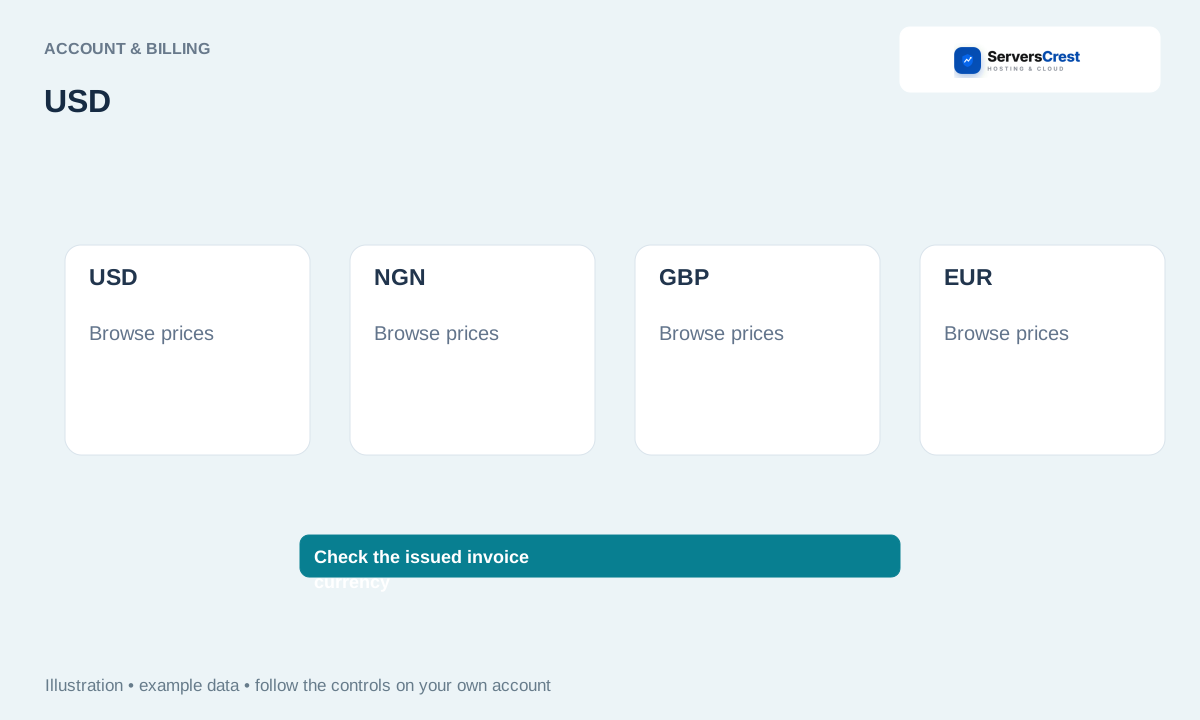
Choose currency before reviewing the cart
Open the currency menu at the top of the site. You can use the menu while signed in or signed out. The available choices are the currencies configured on our website.
Choose the currency and recheck the plan or cart total. Look at the currency code as well as the symbol. Recheck the selected billing cycle because a monthly price and a yearly total are different amounts.
Review the final order currency and gateways offered at checkout. Your invoice shows the currency you will be charged in. The currency menu does not rewrite an invoice that already exists.
If a gateway rejects that currency, use a supported method or contact support about the existing invoice. If PayPal or another method says the currency is unsupported, do not keep submitting the same payment. Choose another listed method or ask support about that invoice.
Find your way around your ServersCrest dashboard · Update your account and billing details
Need help with this? Send us a ticket and tell us which page you reached and what happened.